Step 1
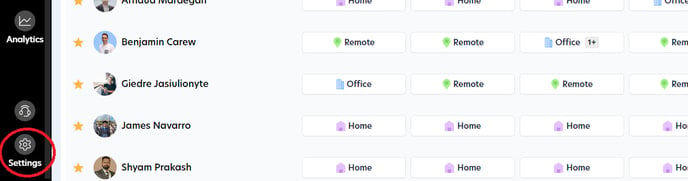
Navigate to the 'Settings' menu.
Step 2
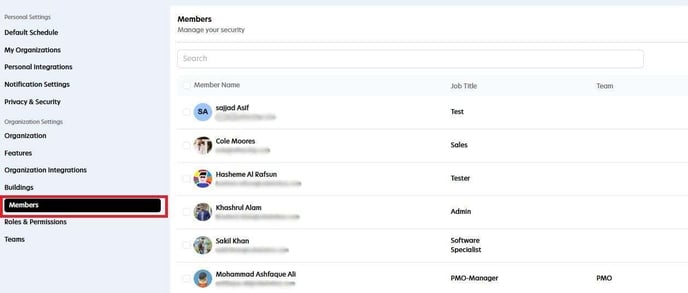
Choose the 'Member' option from the settings menu.
Step 3
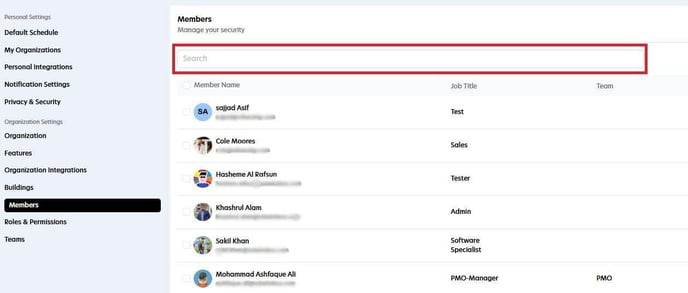
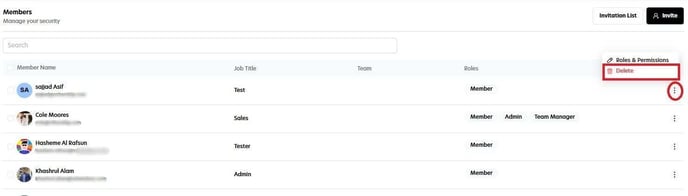
Use the search bar to find the member you want to remove by entering their name or email address.
Step 4
Click on the  button next to the member’s name, then select Delete.
Step 5
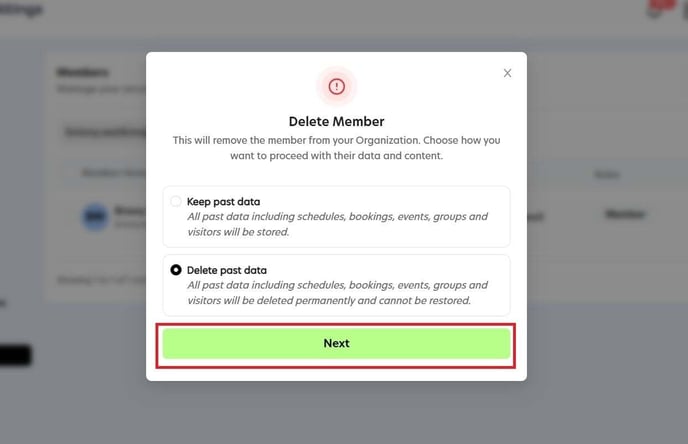
In the confirmation pop-up:
-
To keep the member’s data, select the first option.
-
To delete all data associated with the member, select the second option.
After choosing, click Next.
Step 6
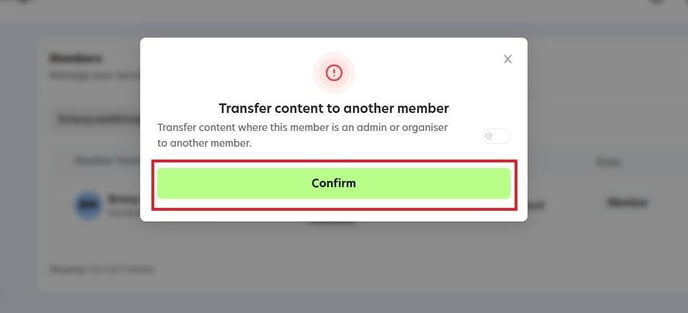
If you want to transfer the member’s data to someone else, choose the new member here.
Otherwise, click Confirm to finalize the deletion.